Reports
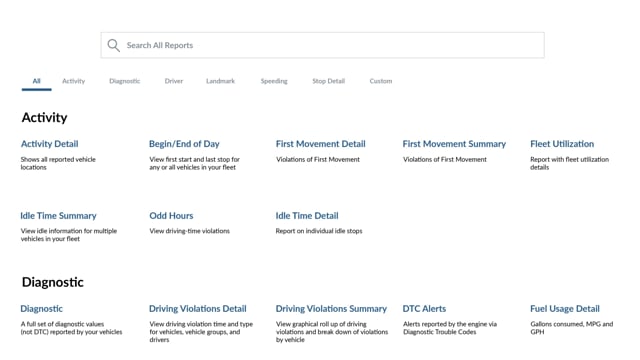
Reports allow you to view and interact with quantifiable vehicle data, such as daily activity, idling, stop times, speeding, landmark visits, and other aspects of driving efficiency. You can run reports to view the data immediately, or you can schedule reports to be automatically delivered via email on a regular schedule.
Fleet Tracking Portal
The Portal provides you with a simple and easy-to-use user interface, intuitive features, and streamlined processes.
Documentation
-
-
Using the Driver Scorecard Report
The Driver Scorecard Report offers interactive graphs, summary totals, and detailed data providing insight into driver behavior from safety events in the form of a weighted score (A-F grade). Driver feature is available to Enterprise customers and customers with the Driver Management add-on. Please contact your Account Manager to learn more. You may filter your… -
Videos
Reports Overview
In this video, Cainan introduces you to the Reports page and the features it offers.
Fleet Safety Reports
In this video, we’ll review several reports that help improve fleet safety.
Idle Time Detail Report
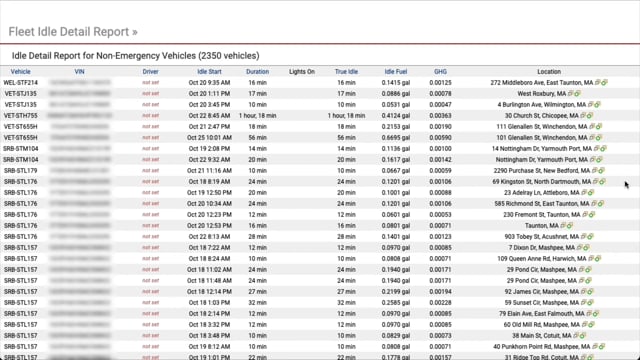
The Idle Time Detail Report lists the total time each vehicle in your organization spends idling and the approximate amount of fuel used while idling.
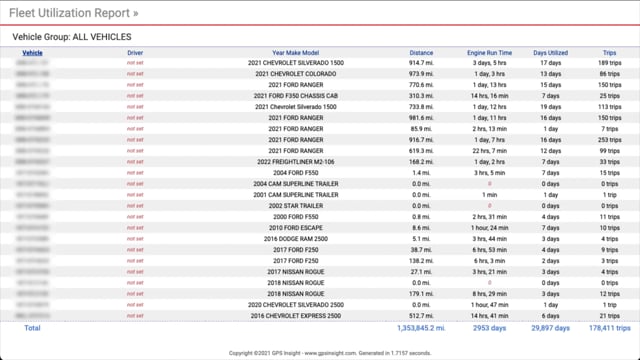
Fleet Utilization Report
The Fleet Utilization Report gives you a full breakdown of vehicle usage for a given timeframe.
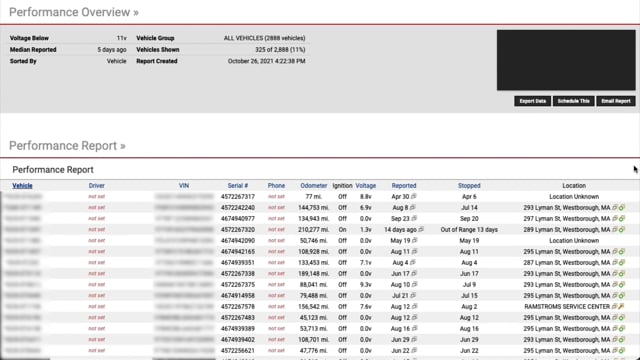
Performance Report
The Performance Report shows the overall health of each vehicle in your organization.
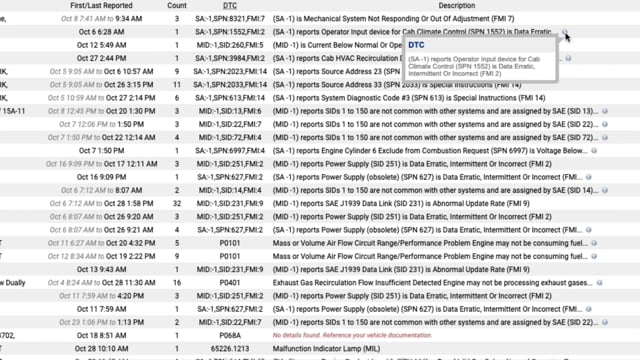
DTC Alerts Report
The DTC Alerts Report provides information on alerts reported by the engine via diagnostic trouble codes (DTC).
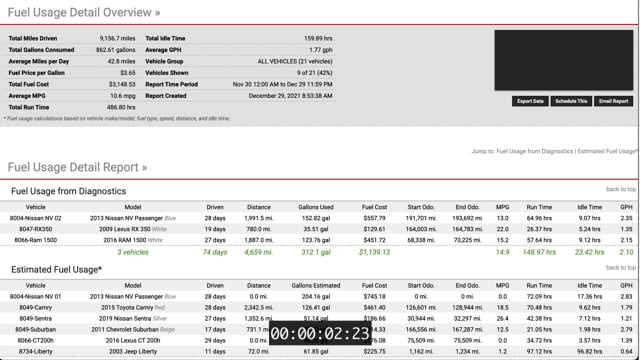
Fuel Usage Detail and Summary Reports
The Fuel Usage reports provide information on gallons of fuel used and miles per gallon reported by the vehicle.
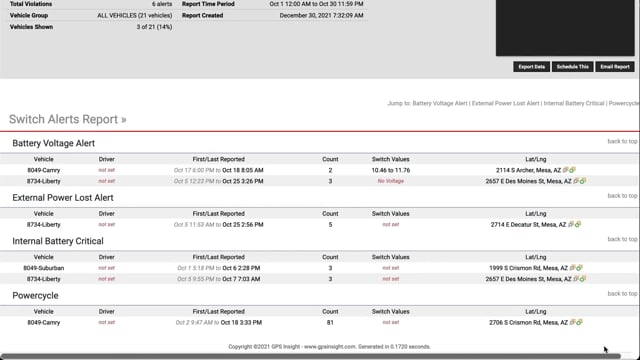
Switch Alerts Report
In this video, Cainan will walk you through running the switch alerts report.
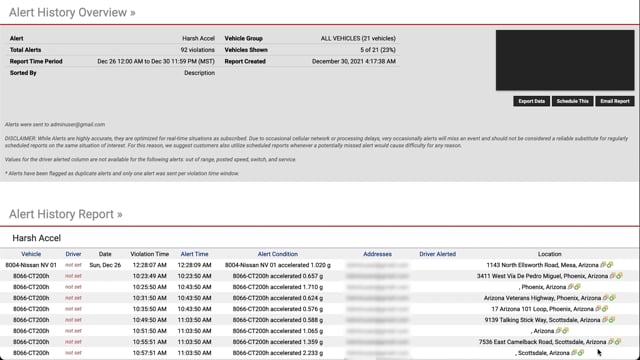
Alert History Report
In this video, Cainan will take you through running the alert history report.
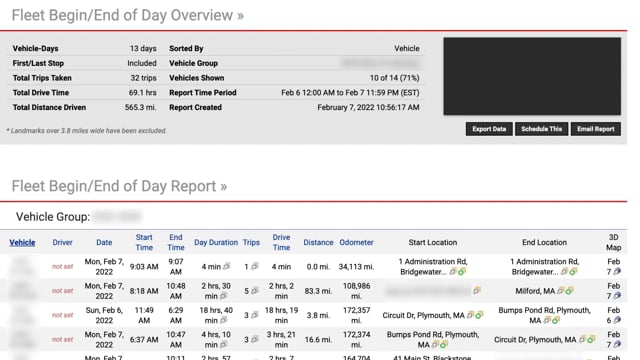
Begin/End of Day Report
The Begin/End of Day report allows you to see the first start and last stop of any vehicle in your fleet.
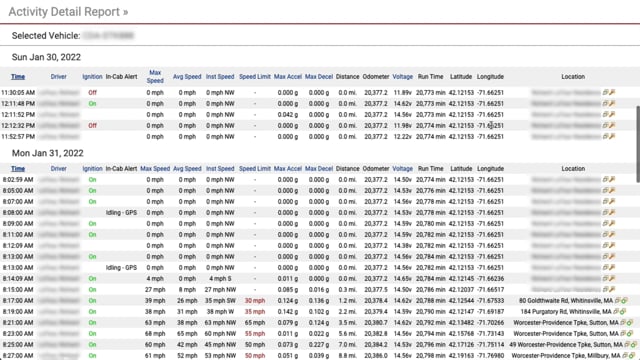
Activity Detail Report
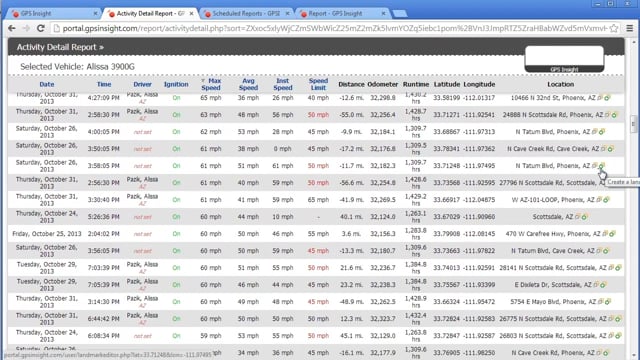
The Activity Detail report provides detailed driving activity for individual vehicles and gives you the ability to review specific trip details.
Trip Detail Report
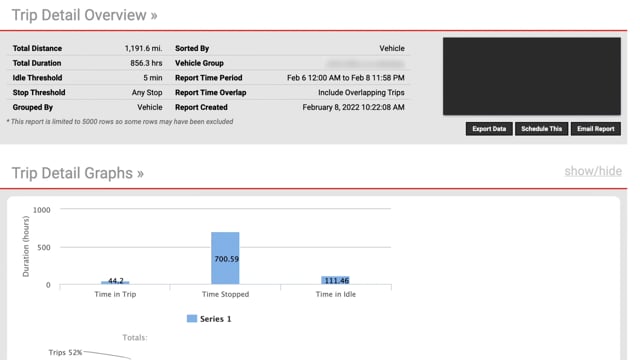
The Trip Detail report shows all trips, stops, and idles on a specific date and time frame. This report allows you to review driving activity.
Idle Time Summary Report
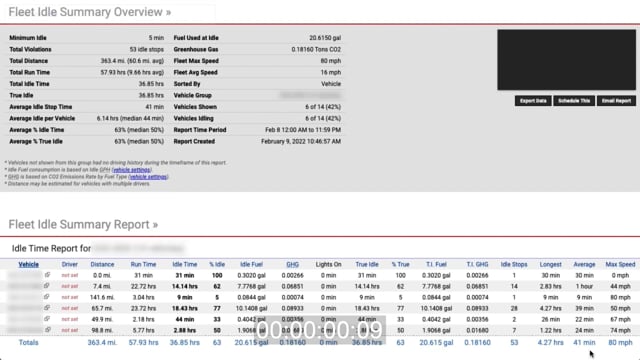
The Idle Time Summary report lists idle information for vehicles in your fleet, including idle time, idle fuel, idle percentages, idle stops, averages, and more.
Odd Hours Report
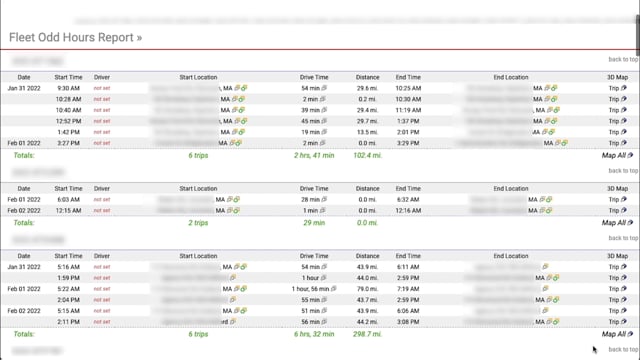
The Odd Hours report provides vehicle usage details outside of normal work hours.
Advanced Admin
The Advanced Admin provides you with end-to-end visibility of location, reporting, and more for your fleet.
Documentation
-
About Reports
Reports allow you to quantify activity, idling, stop times, speeding, and other aspects of fleet efficiency. All reports include links to export data for further manipulation and sorting.
Videos
Scheduling a Report
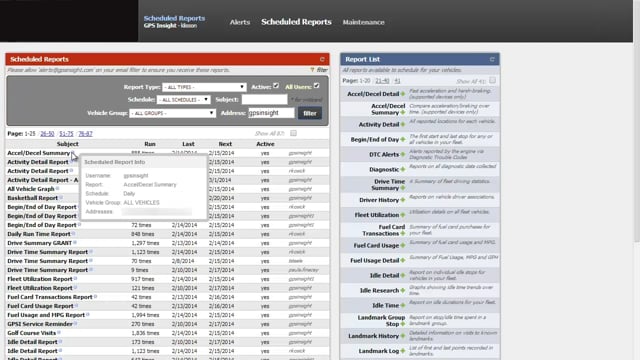
Save your report settings for regular, automated delivery to one or more recipients via email.
Running a Report
Running a report allows you to immediately view the report in a new browser tab.
Deep Dives
What timezone is used on reports?
When I run an Activity Detail report for a vehicle located in the Eastern timezone, does the report show me Eastern time or Arizona time (my timezone)?
How do I report an incorrect speed?
GPS Insight receives posted speed limit data from third-party vendors. The quality of this information is determined by the municipalities that provide the information to the third-party vendors.
How can my drivers find their IRS taxable mileage?
Because you'll only need to account for personal hours, the Odd Hours report will provide the total distance traveled during those custom windows of time.
How do I print a report?
Every browser manages its print settings differently.
How Do I Use My Data for Trend Analysis?
The best predictor of future fleet utilization is ... past fleet utilization! This sounds logical enough, right?
Import Credit Card Fuel Purchases
The Fuel Card Transactions Report and Fuel Card Usage Report can be populated with fuel purchase data sourced from any credit card(s) using a CSV Excel spreadsheet file.
How to Run a Report Including a Deactivated Vehicle
If you are looking to run a report that includes one or more deactivated vehicle(s), please use the following instructions. How to run a report with a deactivated vehicle: In Classic Portal, hover your mouse over “Account” until the drop-down menu appears. In the drop-down menu, click Manage Vehicles. A “Manage Vehicles” sub-list appears to…